
This article contains the latest information about using Auto-Tune Pro as an ARA plug-in in Logic Pro.
Background
Audio Random Access (ARA) increases the amount of communication possible between a DAW and a plug-in, allowing them to exchange more information, such as audio data, tempo, pitch, and rhythm, for an entire song, rather than just at the moment of playback.
The increased amount of information exchange removes the need for audio material to be transferred to & from the plug-in. What this means for you, is that ARA allows a plug-in to be used as a more closely integrated part of the DAW's overall interface.
How to Open an ARA2 Plug-in in Logic Pro
Currently, Auto-Tune Pro 11 and Auto-Tune Pro X are the only Antares plug-ins compatible with ARA2 functionality in Logic Pro*.
Note: Logic Pro must be opened in Rosetta on Apple Silicon machines to use Auto-Tune Pro as an ARA2 plug-in:
- Locate Logic Pro in the Applications folder
- Right-Click on Logic and select "Get Info"
- In the Info Window, check the "Open in Rosetta" box
Please follow the steps below to insert Auto-Tune Pro as an ARA2 plug-in in Logic:
- Create a new track
- Click the 'Audio FX' button to open your list of plug-ins
- Scroll to Audio Units > Antares > Auto-Tune Pro (ARA)
Note: Grouped ARA instantiation is not supported. Please process ARA instances/tracks one by one.
To verify that you're using an ARA2 instance of Auto-Tune Pro, look for the blue 'ARA Mode indicator located below the 'Re-Track' button in the Graph Mode Toolbar: 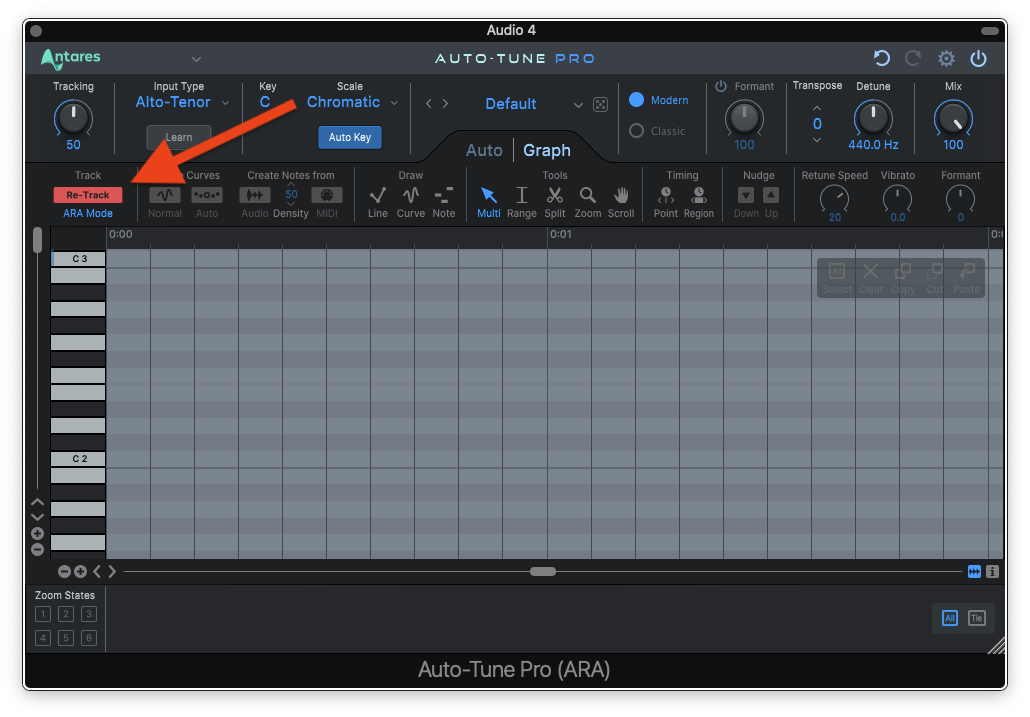
To trigger the instantaneous data transfer in Logic Pro, a moment of playback is required.
Now that you're using Auto-Tune Pro as an ARA2 plug-in, we hope you enjoy the convenience of its tighter integration with Logic Pro! If you have any questions or run into any issues, feel free to contact our support team here.
*Please update Logic Pro to version 10.7.5 or later to ensure proper ARA2 functionality.
Comments
0 comments
Article is closed for comments.