
This article will teach you how to open Auto-Tune Pro as an ARA2 plug-in in Studio One.
Background
Audio Random Access (ARA) increases the amount of communication possible between a DAW and a plug-in, allowing them to exchange more information, such as audio data, tempo, pitch, and rhythm, for an entire song, rather than just at the moment of playback.
The increased amount of information exchange removes the need for audio material to be transferred to & from the plug-in. What this means for you, is that ARA allows a plug-in to be used as a more closely integrated part of the DAW's overall interface.
How to Open an ARA2 Plug-in in Studio One
Note: If you're running the demo version of Studio One on an Apple Silicon machine, please open Studio One in Rosetta to use ARA functionality:
- Locate Studio One in the Applications folder
- Right-Click on Logic and select "Get Info"
- In the Info Window, check the "Open in Rosetta" box
To load an ARA instance of Auto-Tune® Pro, you must add it as an “Event FX” insert on a specific audio event. There are few ways to do so in Studio One:
The simplest way to do this is to click and drag the VST3 version of Auto-Tune Pro from Studio One’s “Effects” menu onto an audio event.
Auto-Tune Pro will now open up with the audio data automatically tracked into Graph Mode: 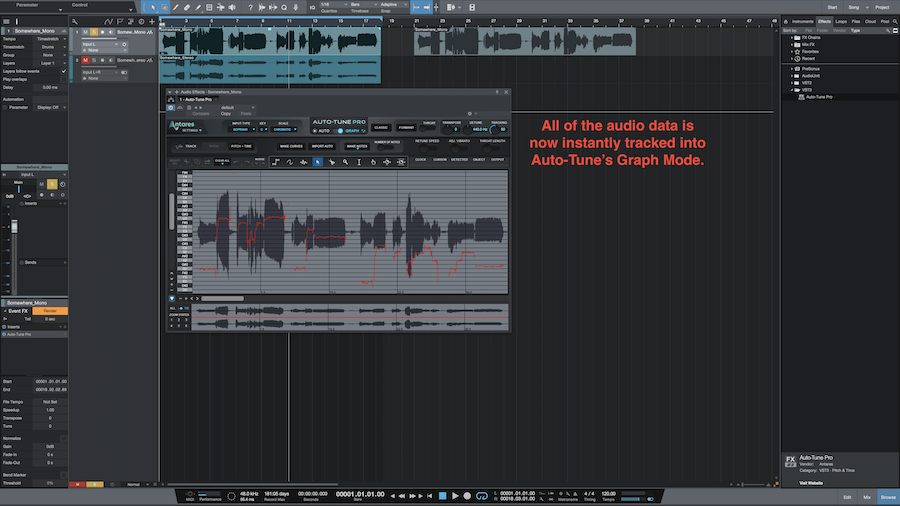
An alternate method is to first click on an audio event and then click on the “Event FX” drop-down tab (triangle): 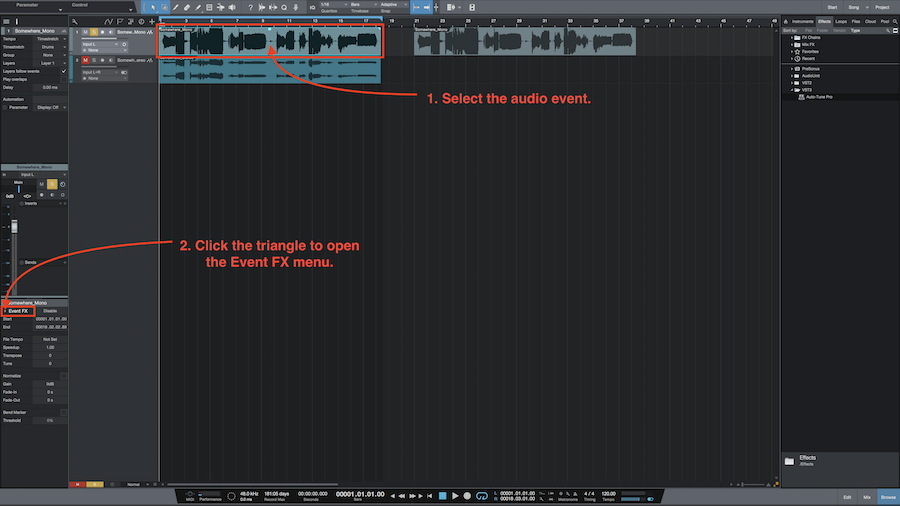
Click on the "+" to open the Event FX drop-down menu: 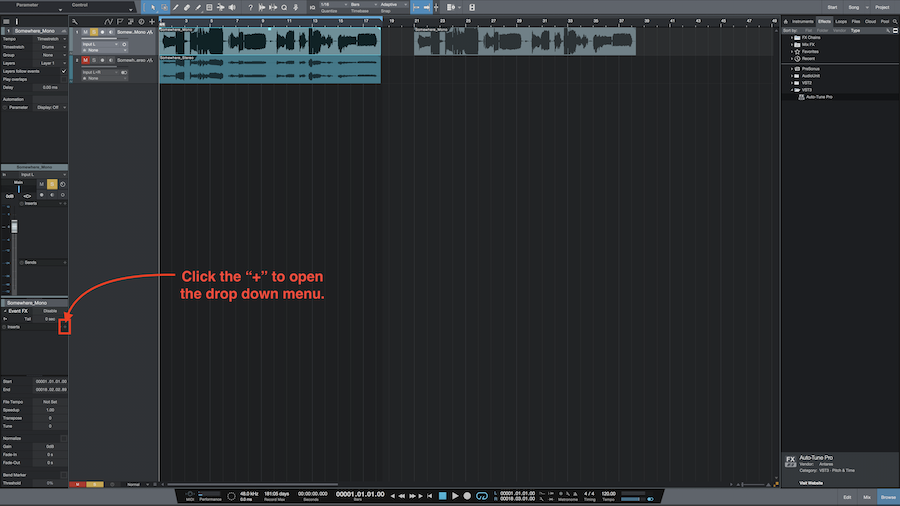
Select Auto-Tune Pro VST3 from the plug-in menu: 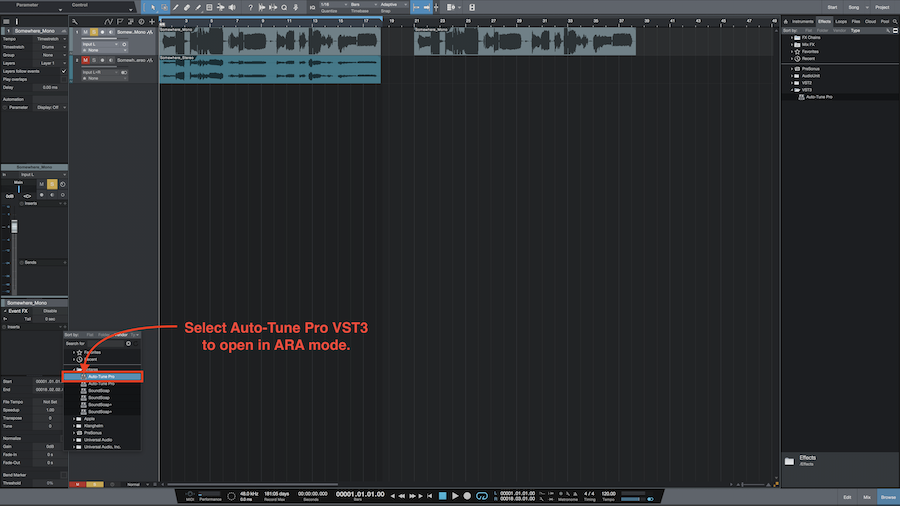
Auto-Tune Pro will now open up with the audio data automatically tracked into Graph Mode:
Note: ARA2 integration is currently available in Auto-Tune Pro X and later.
Comments
0 comments
Article is closed for comments.