
This article will help you resolve the following iLok Error Messages: Software Component Unavailable. Error 2000, Error 2001, and Error 2002.
Some users have reported the following iLok Error Messages when trying to open a PACE protected plug-in in their DAW:
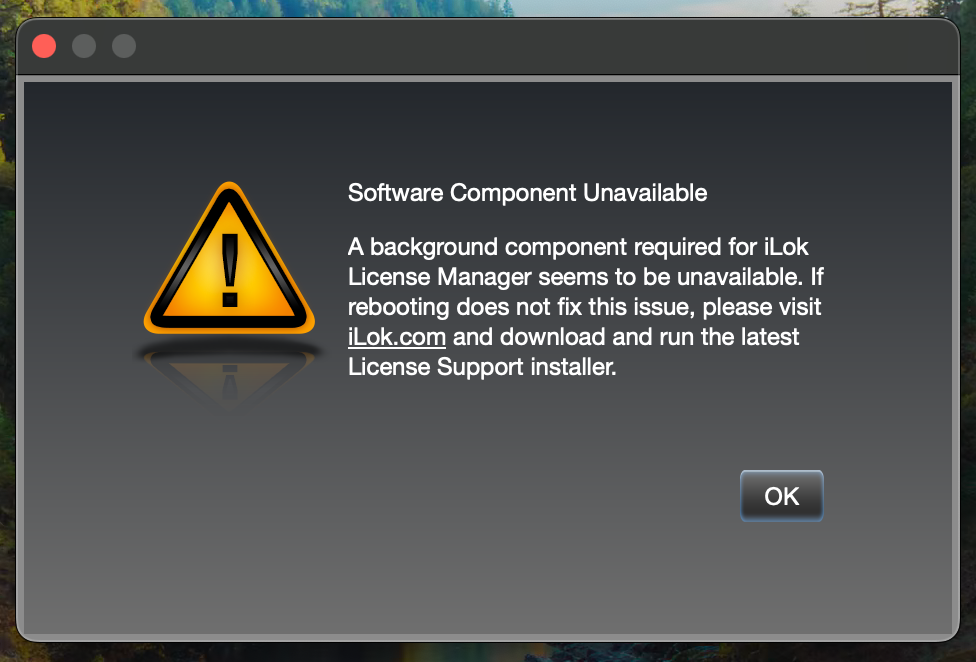
- Software Component Unavailable
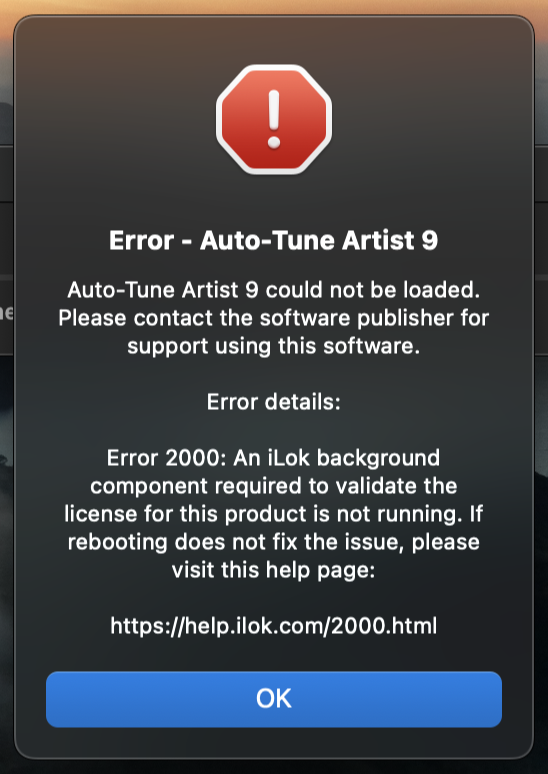
- Error 2000
- Error 2001
- Error 2002
Examples of these error messages are pictured below:
 |
 |
These error messages occur when the iLok License Manager cannot access the PACE License Services (called "licenseDaemon") that it needs to validate your plug-in license. To resolve this, please ensure that PACE License Services are running and allowed to launch at startup.
The steps to do this depend on your computer's operating system. Instructions are listed below for both Mac and Windows:
macOS
First, verify whether the PACE License Services (called "licenseDaemon") is running:
- Open Finder
- Navigate to Applications > Utilities > Activity Monitor
- Check for "licenseDaemon" on the Network list
- If licenseDaemon is on the list, please contact iLok support for further assistance
- If licenseDaemon is not on the list, then the service has either been stopped or was not allowed to run at startup last time you booted your machine. Continue to the next segment.
Next, make sure licenseDaemon is allowed to run at startup:
- Open System Preferences
- Navigate to General > Login Items
- Under Allow in the Background, find "iLok License Manager" and/or "PACE Anti-Piracy, Inc."
- Note: on macOS 13.0 Ventura, the service may be incorrectly labeled as "Avid Pro Tools". Please update to version 13.1 or later to resolve this.
- Toggle "iLok License Manager" and/or "PACE Anti-Piracy, Inc." to on
- Restart your computer
- Launch the iLok License Manager to verify whether the issue has been resolved
If the error persists after allowing PACE Services to run at startup, consider uninstalling and reinstalling the latest version of the iLok License Manager.
For further assistance, please contact iLok support.
Windows
First, verify whether the PACE License Services (referred to as "licenseDaemon") is running:
- Press the Windows key + S to open the search bar
- Type "services" and press Enter
- Right-click PACE License Services on the Services list and choose Properties from the pop-up menu
- If the service is on the list, please contact iLok support for further assistance
- If the service is not running, then the service has either been stopped or was not allowed to run at startup last time you booted your machine. Click the Start button to start the service, and continue to the next step.
Next, make sure the PACE License Services are allowed to run at startup:
- In the General tab:
- Ensure the Startup type is set to Automatic (Delayed Start). If not, select it from the dropdown menu.
- Check the Service status. If it shows Stopped, click on the Start button to initiate the service.
- Click the OK button to save your changes
- Close all windows
- Restart your computer
- Important: Wait 2 minutes, then launch the iLok License Manager (this gives PACE License Services plenty of time to start).
If the error persists after allowing PACE Services to run at startup, consider uninstalling and reinstalling the latest version of the iLok License Manager.
For further assistance, please contact iLok support.
Note for GarageBand users:
We've received reports from GarageBand users regarding a separate issue relating to iLok licensing:
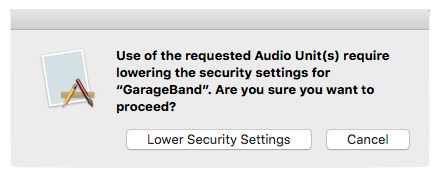
According to this article from iLok support, GarageBand cannot load iLok-protected plug-ins without lowering GarageBand’s security settings. This is due to an issue that prevents the plug-in from communicating with their required LicenseD component when GarageBand is running at full security.
Until this issue is resolved, iLok-protected plug-ins will require lower security settings in GarageBand in order to run.
Comments
0 comments
Article is closed for comments.