
This article describes how you can identify which authorization system your plugin uses, and how to resolve the "No License Found" and "Activation Required" error messages.
Wibu Authorization
If the Wibu authorized version of your plugin is installed, you may see the following "No License Found" error message, pictured below:
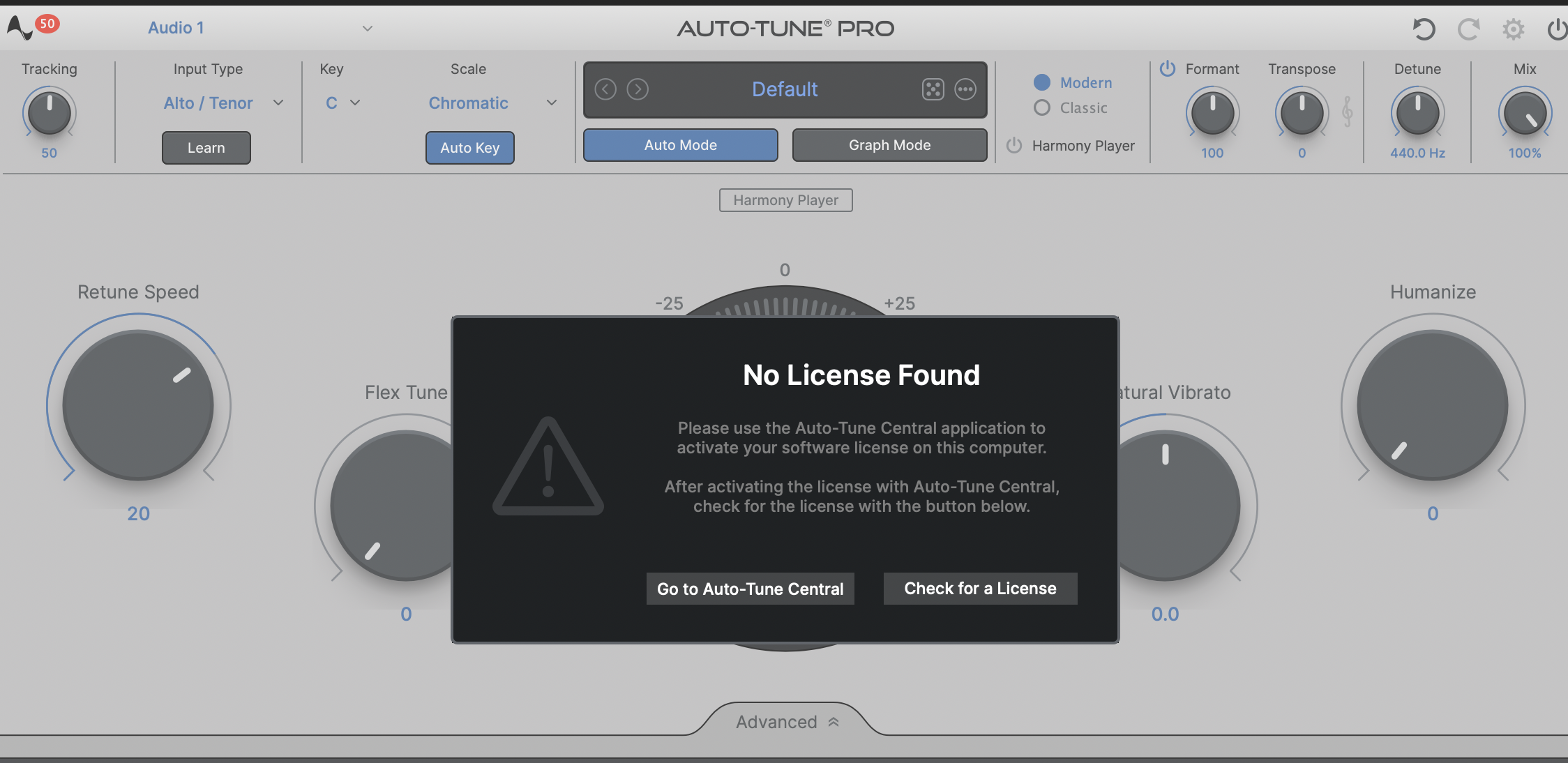
This error message indicates that the Wibu-authorized version of Auto-Tune is currently installed on your system.
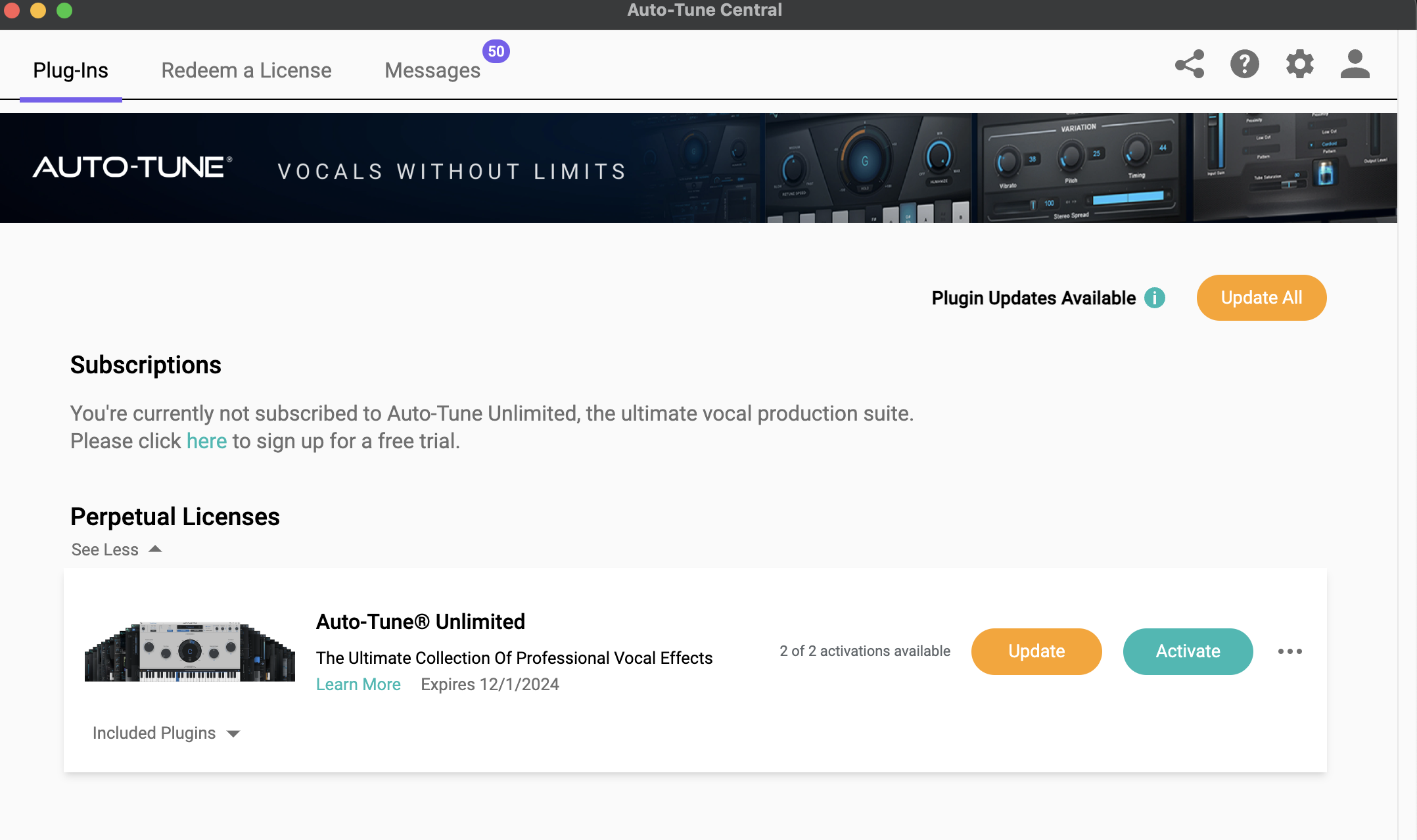
To resolve this, make sure your plugins are updated to the latest version (authorized with iLok) from the Auto-Tune Central application, and that your license is activated onto your computer or iLok dongle. Please follow the steps below:
- Open Auto-Tune Central, and click the Update or Update All button to install the latest version of your plugins:
-
After completing the installation, click the Activate button.
- For a full walkthrough of the license activation process, please see this Knowledge Base article.
- For a full walkthrough of the license activation process, please see this Knowledge Base article.
- Launch your DAW and rescan for plugins
iLok Authorization
If the iLok authorized version of your plugin is installed, you may see the following “Activation is Required” error message if the license is missing or not detected. See below:
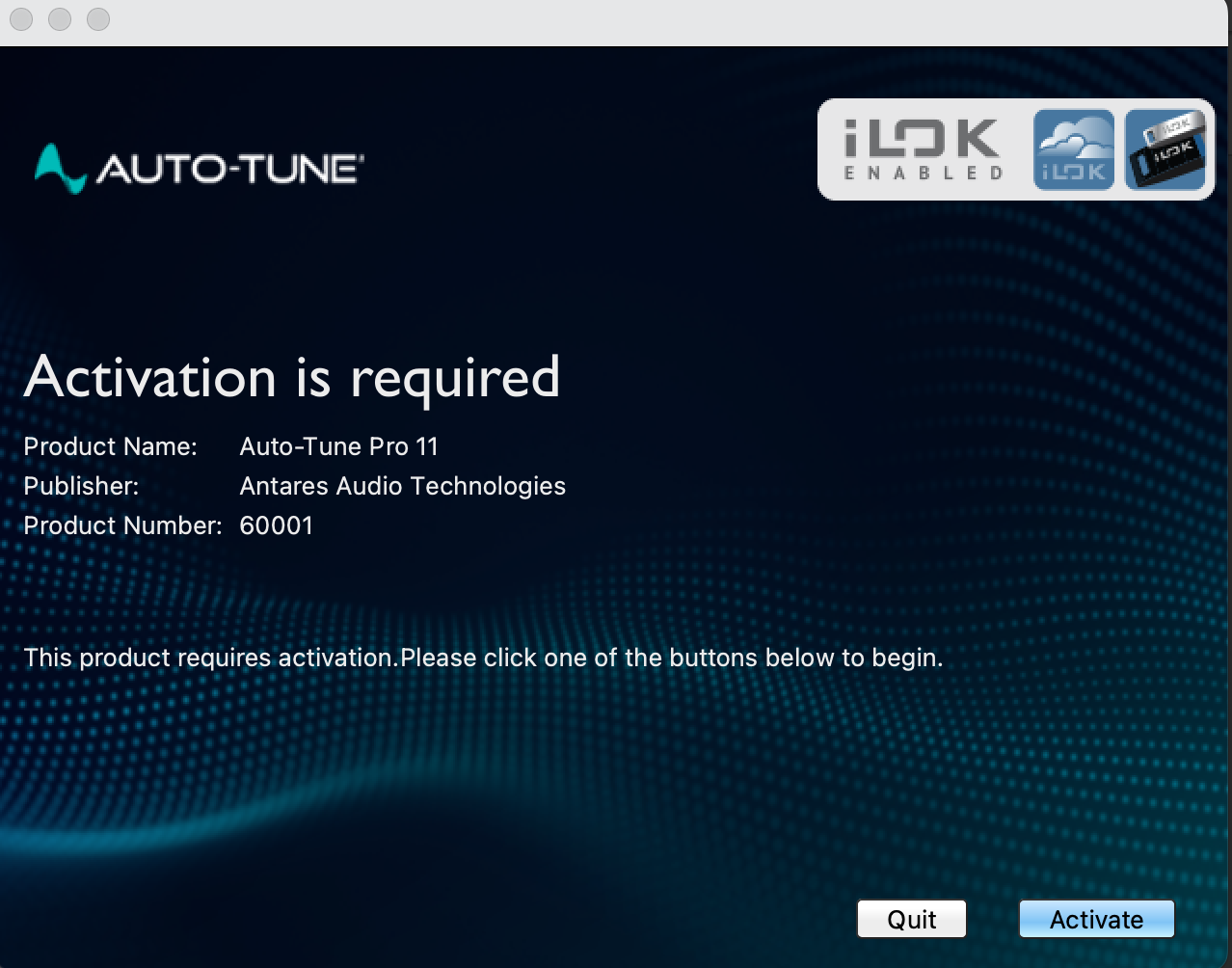
This message indicates that the iLok-authorized version is installed on your system and that you need to complete the activation process via the Auto-Tune Central application or the iLok License Manager. For a full walkthrough of the license activation process, please see this Knowledge Base article.
If you still encounter issues after installing the latest versions of your plug-ins, and have activated your licenses in Auto-Tune Central, please contact our support team for further assistance.
Comments
0 comments
Article is closed for comments.