
If you have installed a macOS-compatible Antares plugin and it is not showing up in Ableton Live 10, please follow these instructions to resolve the issue.
If your Antares plug-in is not showing up in Ableton Live 10 (64-bit), please be sure that you have installed the 64-bit AU version of the plug-in. The VST versions of our current plug-ins are not compatible with Ableton Live on Mac.
If your license is for an older 32-bit version, you may need to first purchase an upgrade to a 64-bit version.
The installers for older versions of our plugins can be found here.
Scanning For Plug-Ins
If you have installed a compatible AU plugin, and that plug-in is not showing up in Ableton Live, please first restart your computer, restart Ableton Live, and look again to see if the plug-in is available via Ableton's Browser under Plug-ins > Audio Units > Antares
If you still do not see your Antares plug-in in Ableton, please follow these instructions to resolve the issue:
1. In Ableton, click on the "Live" drop-down menu and then click on "Preferences."
2. Click on the "File Folder" tab and then set "Use Audio Units" to "On." Your Preferences screen should match this screenshot exactly:
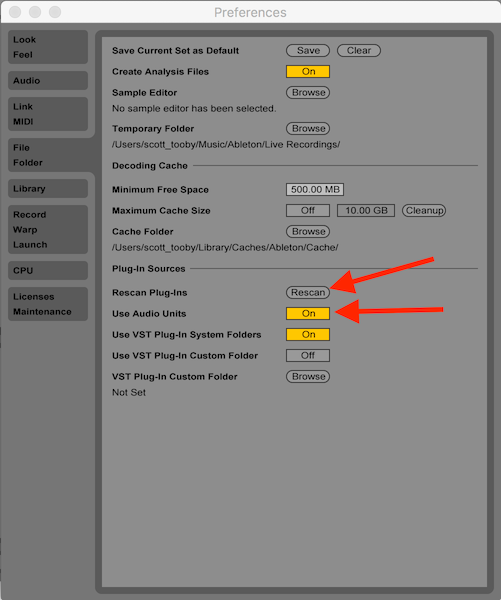
3. Press and hold down the "option" key and then click on "Rescan."
Your Antares plug-ins should now be available under Plug-ins > Audio Units > Antares. If you still have trouble finding your plug-in, please contact our support team here.
Comments
0 comments
Article is closed for comments.